Jellyfin Server: Build a Quiet, Cheap Home Media Hub
How to build a budget Jellyfin server that's silent, sips power, and streams your own media to every screen — hardware, transcoding, costs, and clients.
A Jellyfin server is just a computer that runs the free, open-source Jellyfin media server and streams your own films, TV rips, music, and photos to every screen you own — with no subscription, no lifetime pass, and nobody else's cloud in the loop. This hub covers the whole job: picking hardware that's quiet and cheap to run, the one technical decision (transcoding) that actually sets your budget, what the finished box costs per year in electricity, and how to get a clean client onto your TV. Everything here comes from a server I run myself and a Fire TV client I build myself; where a number is mine, I say so.
- What Jellyfin is — and what it isn’t
- What hardware a Jellyfin server actually needs
- Hardware transcoding: the decision that sets your budget
- Installing Jellyfin: the short version
- What a home server costs to run
- Getting it on your screens
- Jellyfin vs Plex and Emby
- Frequently asked questions
What Jellyfin is — and what it isn't
Jellyfin started life in December 2018 as a community fork of Emby, made the moment Emby closed its source. Since then it has grown into the default answer to “I want Plex, but without the account.” You install the server on a machine in your house, point it at folders of media you already own, and it builds the familiar poster-wall library — artwork, metadata, watch progress, user profiles — served entirely from your own hardware. There is no sign-up, no licence key, no premium tier, and no feature held back for payment. The apps are free on every platform, hardware transcoding is free, and the project is run by volunteers under an open-source licence.
It is worth being clear about what it isn’t, too. Jellyfin doesn’t provide any content — it plays the files you give it, so the library is only ever as good as your rips and downloads. It doesn’t come with a slick relay service for out-of-the-house streaming; remote access is yours to set up (a VPN like Tailscale or WireGuard is the sane route, and it’s genuinely a fifteen-minute job). And because nobody is paid to polish it, the odd rough edge survives longer than it would in a commercial product. In exchange, nothing about it can be taken away from you by a pricing announcement.
That last point is why interest in Jellyfin keeps spiking. In April 2025 Plex raised its lifetime pass to $749.99 and moved remote streaming — watching your own server away from home — behind a subscription. The July 2026 wave of price rises across streaming and media software has pushed another round of Plex users to look for the exit. Jellyfin is where most of them land, because the core promise is structural rather than promotional: there is no company that could charge you, so the price can’t change. If you’re weighing the two platforms properly, I’ve written a fuller comparison in the Jellyfin vs Emby piece and in the Plex section further down this page.
What hardware does a Jellyfin server actually need?
Far less than the forums suggest. The honest minimum for a household that mostly direct-plays its files is any 64-bit machine from the last decade with 4GB of RAM and somewhere to put the media. Serving a video file over your home network is not hard work — it’s closer to copying a file than to playing one. The machine doesn’t decode the video; your TV does. That’s why a fanless mini PC can feed three televisions at once without breaking a sweat, and why the single question that actually decides your budget is not “how powerful?” but “will it ever need to transcode?” — which gets its own section below.
Because the bar is so low, the cheapest Jellyfin server is usually one you already own. An old laptop is a particularly good donor: it’s quiet, it sips power, and it has a built-in UPS in the form of its battery. An office cast-off desktop works too, though it will draw more at the wall. My advice is to start with whatever is in the cupboard, run it for a month, and only spend money once you know what annoys you — usually noise, power draw, or a CPU that chokes the first time a phone asks for a transcode. If you’d rather skip straight to bought hardware on a tight budget, the budget Jellyfin server build guide walks through the full parts list and the corners that are safe to cut.
The £150 reference build
The build I actually run — and the one every measured number on this site comes from — is an Intel N100 mini PC with 16GB of RAM and a 512GB SSD, which cost me about £139, plus a 4TB WD Red Plus hard drive at around £89. That’s roughly £228 all in, and the “£150” in the heading is the server itself: the drive scales with your library, not with Jellyfin. The N100 is a quad-core chip from Intel’s efficiency line, and the whole machine is about the size of a paperback. It sits on a shelf behind the TV and makes no noise I can hear from the sofa.
Measured at the wall with a plug-in meter, mine idles at 6 W and sits around 11 W while streaming a 1080p file as direct play. Those are the two numbers that matter for a box that runs 24/7, and they’re what make the yearly running cost — worked through below — almost a rounding error. The one spec worth insisting on is the drive: WD Red Plus because it’s a CMR drive, not SMR. SMR drives are fine for a media library that’s mostly read, but they fall apart on sustained writes, and the few pounds saved aren’t worth the surprise. The full step-by-step for this exact machine, from BIOS to first stream, is in the N100 Jellyfin setup guide.
Mini PC vs NAS vs old desktop
There are three sensible chassis for a home Jellyfin server, and the right one depends on how much storage you need and how much you enjoy tinkering:
| Chassis | Best for | Watch out for |
|---|---|---|
| Mini PC (N100 class) | Most people. Cheapest to buy and run, silent, Quick Sync transcoding included. | Limited drive bays — big libraries mean USB enclosures or a separate NAS. |
| NAS | Libraries past ~8TB, or anyone who also wants backups and file sync in one box. | You pay a premium for the enclosure, and cheaper ARM models can’t transcode at all. |
| Old desktop | Free if you have one; loads of drive bays; easy to upgrade. | Three to ten times the idle power draw, plus fan noise and the footprint of a small suitcase. |
My short version: a mini PC wins on every measure except drive bays, which is why it’s my default recommendation and why the best mini PCs for Jellyfin round-up exists. If your library has outgrown a couple of drives, or you want RAID redundancy and proper backups in the same box, read the best NAS for Jellyfin guide instead — the crucial trap there is that many budget NAS units use ARM chips with no usable transcoding, which is fine until the day it isn’t. The old desktop is the right answer only when it’s free and you’ve accepted the electricity bill that comes with it.
Hardware transcoding: the decision that sets your budget
Every piece of hardware advice in this article reduces to one question: what happens when a device asks for a video it can’t play natively? If the file’s codec, resolution, and audio all suit the client, Jellyfin simply hands the file over — that’s direct play, and it costs almost nothing in CPU. If anything doesn’t suit — the TV can’t decode HEVC, the connection can’t carry the bitrate, the subtitles need burning in — the server has to transcode: decode the video and re-encode it on the fly into something the client can handle. Done on CPU cores alone, a single 4K transcode will flatten a small processor. Done on a dedicated media engine — Intel’s is called Quick Sync — the same job barely registers. That’s the whole trick, and the hardware transcoding guide covers the codec tables and settings in depth.
When you need transcoding — and when you don't
You need less transcoding than you think, and possibly none. Modern TVs, Fire TV sticks, and phones decode H.264 and HEVC in hardware, so a library of typical 1080p and 4K rips direct-plays to modern clients all day. The cases that genuinely force a transcode are predictable:
- An older smart TV or budget stick that can’t decode HEVC, being fed a HEVC file.
- Watching away from home over an upload connection too slow for the file’s bitrate, so the server must shrink it.
- Burned-in subtitles — image-based formats like PGS from Blu-ray remuxes force a video transcode just to draw the text.
- Browsers, which are pickier about codecs and audio formats than dedicated apps.
If your clients are all recent and you only watch at home, you can run Jellyfin on nearly anything and never see a transcode. But here’s the thing: the insurance is so cheap that I don’t recommend planning around “never”. One visiting relative with an old tablet, one hotel wifi session, one Blu-ray remux with PGS subtitles, and you’ll want it. Quick Sync is the difference between that moment being invisible and the whole house buffering.
Quick Sync and the N100
Quick Sync is the fixed-function video engine built into nearly every Intel chip with integrated graphics. Because it’s dedicated silicon rather than general-purpose cores, it encodes and decodes video at a tiny fraction of the power and effort of a software transcode — which is why a £139 mini PC can do work that embarrasses old quad-core Xeon servers. Jellyfin supports it natively via VA-API and Intel’s QSV on Linux; it’s a checkbox and a device path in the playback settings, not a science project.
The N100 specifically ships with the same media engine family as Intel’s 12th-generation desktop chips, including hardware HEVC and AV1 decode. In my own use, the reference build takes a 4K HEVC transcode down to 1080p without drama, and a couple at once is still fine — the limiting factor in practice is your network and disks long before it’s the media engine. Enabling it is the one genuinely fiddly step of the whole build (drivers, the right toggles, and a low-power encoding option worth switching on), so I’ve documented every click in the N100 setup guide rather than half-explaining it here.
Installing Jellyfin: the short version
The install is the easy part, and I’d rather you under-engineer it. First, the operating system: Linux is the right answer for a dedicated box — Debian or Ubuntu Server are boring, documented, and exactly what you want a 24/7 appliance to be. Windows works fine if it’s what you know; the machine spends its life idle either way. The official installation docs cover every platform, and the Linux path is a repository add and one package install.
The real fork in the road is bare install versus Docker. A bare install (the package manager route) is simpler to reason about and slightly easier for hardware transcoding, because there’s no container boundary between Jellyfin and the GPU device. Docker is better if the server will also run other services — and home servers have a way of sprouting them — because each app stays in its own tidy box and upgrades can’t tangle. My honest guidance: if Jellyfin is the only thing this machine will ever do, install it bare and move on; if you already know you want more services later, start with Docker and remember to pass /dev/dri through to the container so Quick Sync still works.
Library setup is mostly about file naming, because Jellyfin’s metadata scrapers read the filesystem. Keep films as Films/Film Name (2009)/Film Name (2009).mkv and TV as Shows/Show Name/Season 01/Show Name S01E01.mkv, add each top-level folder as a library with the right content type, and the posters, plots, and cast lists fill themselves in. Ninety per cent of “Jellyfin matched the wrong film” complaints are naming problems, and the fix is a rename, not a setting. Two finishing touches worth doing on day one: create a separate non-admin user for the household, and turn on scheduled library scans so new files appear without a manual refresh.
What a home server costs to run
This is the question that stops people building a 24/7 server, and it’s the one with the most pleasant answer. My N100 box measures 6 W at idle and about 11 W streaming 1080p direct play. Run the maths at the UK price cap of 27p per kWh: 6 W around the clock is roughly 52.6 kWh a year, or about £14.20. Layer a realistic few hours of streaming a day on top and the bill lands around £15 a year — about £1.25 a month to run the family’s entire streaming service. For context, that’s less than most people’s broadband router draws, and a fraction of a single month of a video subscription.
The same sum is what condemns the old desktop option for always-on duty. A typical recycled tower idles at 40–60 W, which at 27p per kWh is £95–£140 a year — every year — before it streams a single file. Over three years, the “free” desktop costs more than the mini PC and its drive combined. That’s the whole argument for efficient hardware in one paragraph: the purchase price is a one-off, but the wattage is forever. To run the numbers for your own hardware and tariff — different idle draw, different unit rate, different hours — use the home server power calculator; it does the kWh arithmetic for you and shows the yearly cost side-by-side for a few common builds.
Getting it on your screens
Fire TV stick
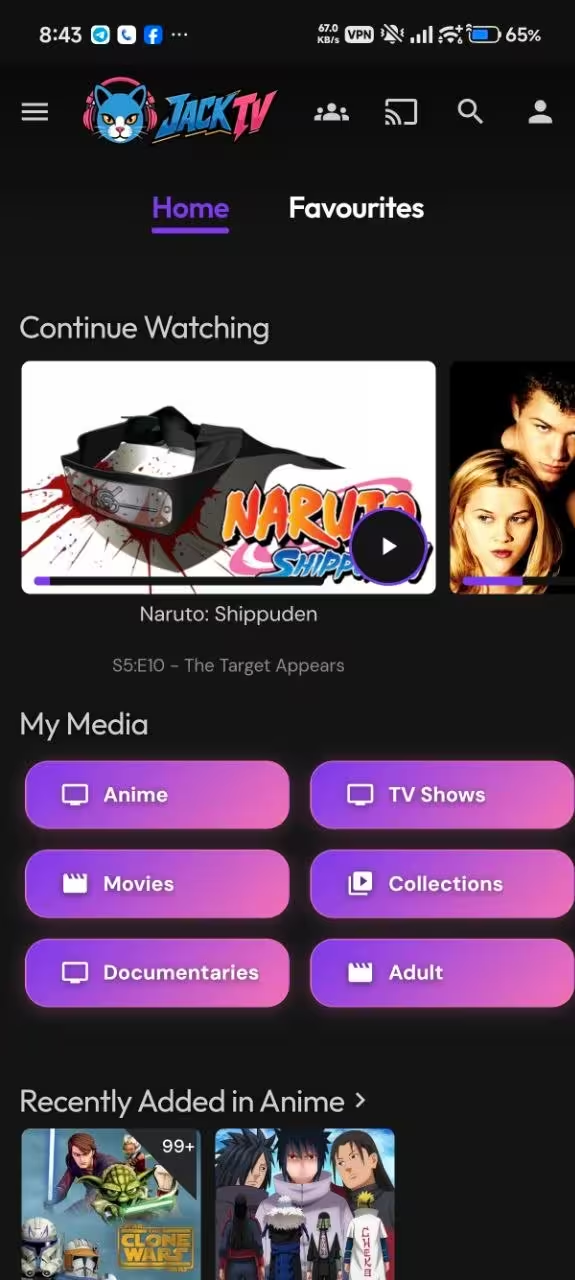
Fire TV sticks are how most UK households will actually watch their Jellyfin library, because nearly everyone owns one and the official Jellyfin app is free in the Amazon appstore. Install it, sign in with the server’s local address, and you’re streaming — Quick Connect makes the sign-in a six-character code rather than typing a password with a remote. The full walkthrough, including the sideloading route and the settings worth changing on day one, is in the Jellyfin on Fire TV guide.
I’ll declare a bias here: I know this client unusually well because I maintain my own build of it. The official Android TV app is open source, so I keep a personal fork of jellyfin-androidtv v0.19.7 — rebranded, re-signed with my own key, and tweaked to open straight into the library instead of the home screen — sideloaded on my own Fire TV sticks. I mention it not because you should do the same (the stock app is the right choice for almost everyone), but because living in that codebase is why I trust the app’s direct-play behaviour and why the Fire TV guide can be specific about what the client does rather than guessing.
Android TV, phones, and browsers
Everywhere else is straightforward. The same Android TV app runs on Google TV boxes like the Chromecast and onn. devices, and on Android TV sets from Sony, TCL, and Philips. Phones and tablets get official Jellyfin apps on both Android and iOS — handy for downloads before a flight, since offline sync is free rather than paywalled as it is elsewhere. Any laptop just uses the web interface at the server’s address, no install needed; that’s also the admin dashboard, so you’ll know it well. The notable gaps: LG and Samsung TVs have community clients in varying states of polish, and on Apple TV the third-party app Swiftfin does the job. My honest ranking for the living room is a stick or box running the Android TV app first, the TV’s built-in client second, and the browser as the fallback that always works.
Jellyfin vs Plex and Emby
The honest comparison is shorter than the internet makes it. Plex is more polished: the apps are slicker, setup is gentler, and remote access works out of the box because Plex relays it through their infrastructure. The price of that polish is an account you don’t control and pricing that has moved sharply in one direction — a $749.99 lifetime pass and remote streaming behind a subscription since April 2025. Plex is still the right answer for one kind of person: someone who shares a server with non-technical family across several houses and wants it to Just Work without ever explaining a VPN. If that’s you, pay for Plex with a clear conscience.
Emby sits in the middle, and the history matters: Jellyfin is Emby, forked in 2018 when Emby went closed-source. Today Emby is a commercial product with an optional Premiere subscription gating hardware transcoding and some apps, while Jellyfin gives you the same family of features for nothing. Emby’s apps are somewhat more polished and its DVR support is stronger, but for a self-hosted library the free fork has, in my view, decisively overtaken its parent. The detailed feature-by-feature breakdown lives in the Jellyfin vs Emby comparison. My own position is the obvious one given the site you’re reading: I run Jellyfin, the trade-offs in this section are ones I’ve accepted knowingly, and the deciding factor was that no future pricing email can change my setup.
Frequently asked questions
Is Jellyfin really completely free?
Yes — the server, every official client app, hardware transcoding, offline downloads, and multiple users are all free, with no premium tier to upsell you. It’s built by volunteers and funded by donations. The realistic costs are the hardware (from £0 if you reuse an old machine) and the electricity, which for an efficient build is around £15 a year.
Can I run Jellyfin on a Raspberry Pi?
You can, and for a small direct-play library a Pi 4 or 5 manages fine. The catch is transcoding: the Pi has no Quick Sync equivalent that Jellyfin can use well, so the first incompatible client or remote stream brings it to its knees. With N100 mini PCs starting near the price of a Pi plus its accessories, I’d only choose the Pi if you already own it.
Do I need a graphics card for a Jellyfin server?
No. The integrated graphics on any recent Intel chip include Quick Sync, which handles transcoding far more efficiently than a discrete card while drawing a few watts instead of dozens. A dedicated GPU only earns its place in unusual setups serving many simultaneous transcodes — a home server is not that.
Can I watch my Jellyfin library away from home?
Yes, but unlike Plex it isn’t switched on for you. The safest route is a mesh VPN like Tailscale or WireGuard: install it on the server and your phone, and the apps connect exactly as they do at home. It takes about fifteen minutes and avoids exposing the server to the open internet. Remember your upload speed becomes the ceiling — slow uploads mean the server must transcode to a lower bitrate, which is one more reason Quick Sync earns its keep.
Is running a Jellyfin server legal?
The software is unambiguously legal — it’s an open-source media organiser, no different in kind to a fancy file browser. What you put in the library is on you. In the UK, the lawful position on ripping discs you own is genuinely murky, so I won’t pretend otherwise; what’s certain is that Jellyfin itself neither provides content nor phones home about yours.
How much storage should I start with?
A single 4TB CMR drive is the sweet spot to begin: roughly £89, room for a few hundred films or a healthy TV collection at sensible bitrates, and you can add a second drive when it fills rather than guessing up front. The only firm rule is CMR over SMR, and a backup for anything you couldn’t re-rip.