Jellyfin Firestick Setup: The Complete Install Guide
Install Jellyfin on a Fire TV Stick the right way: Appstore or sideload, the playback settings that stop transcoding, and codec limits by stick.
Here is the quick answer, because most guides bury it: the official Jellyfin app is on the Amazon Appstore. On your Fire TV Stick, search for “Jellyfin” from the home screen, install the app published by the Jellyfin project, open it, and sign in to your server. That is the whole job for most people. Sideloading — the thing half the internet tells you to do first — is only needed if you want a beta build, or if your particular stick or region hides the listing.
I should say why you might trust me on this. I run my own Jellyfin server at home, and the Fire TV sticks in my house don’t run the stock client — they run my own build of the official Android TV app, which I compile, sign and tweak myself (mostly so it opens straight into the library I want instead of the home screen). That’s a personal thing, not something I distribute, but it means I’ve spent real time inside the code that decides whether your film direct plays or transcodes. That’s the lens for everything below. If you haven’t built the server side yet, start with my Jellyfin server guide and come back.
Method 1: install from the Amazon Appstore
From the Fire TV home screen, press the microphone button and say “Jellyfin”, or scroll to the search icon and type it. The official app shows the Jellyfin logo — the purple-and-blue gem. Select it, choose Get (or Download), and wait for the install to finish. It’s free, there are no in-app purchases, and it never asks for an account with anyone except your own server.
Two things catch people out here. First, the Appstore occasionally surfaces lookalike third-party clients above the official one — check the developer name before installing. Second, the search interface loves to push sponsored apps at you; the official client is sometimes a row or two down. Neither is a Jellyfin problem. Both are a Fire OS problem, which is a recurring theme on this platform.
Method 2: sideloading the official APK properly
You only need this if the Appstore listing is missing on your device, or you want a newer build than the store carries. Sideloading has a deserved reputation for being how people install malware on sticks, so one rule above all: the only place to get the APK is repo.jellyfin.org, the Jellyfin project’s own release archive, or the releases page of the official github.com/jellyfin/jellyfin-androidtv repository. Never an “APK mirror” site, never a link from a forum post, never a Telegram group. I build this app from source; I promise you the official archive is not hard to find and there is no good reason to go elsewhere.
The process on a current stick:
- Go to
Settings → My Fire TV → Developer optionsand turn onApps from Unknown Sources. On newer Fire OS versions Developer options is hidden: go toSettings → My Fire TV → About, highlight the device name, and click it seven times to unlock the menu. - Install the Downloader app from the Appstore (it’s the standard tool for this; Fire OS has no browser worth using).
- In Downloader, enter the URL for the Android TV client on repo.jellyfin.org and download the latest stable release APK.
- When the download finishes, Downloader prompts you to install. Confirm, then turn
Apps from Unknown Sourcesback off when you’re done — leaving it on is an open door you don’t need.
One caveat from someone who signs his own builds: a sideloaded APK signed with a different key cannot update an existing install. If you have the Appstore version installed and sideload an official APK over it (or vice versa), the install may fail or you may end up uninstalling first and losing local settings. Pick one source and stay with it.
Connecting to your server
On first launch the app asks for your server. You have two routes:
- Quick Connect — if you’ve enabled it on the server, the stick shows a short code; you enter that code in the Jellyfin web interface under your user menu, and the stick signs in without you typing a password with a remote. This is the civilised option.
- Manual address — type the server address directly, e.g.
http://192.168.1.50:8096. On your home network, use the server’s local IP rather than an external hostname: traffic stays on your LAN, you avoid any dependency on your router’s loopback behaviour, and a remote-access outage can’t break living-room playback. Give the server machine a static IP (or a DHCP reservation) first, or this address will eventually go stale and the app will sit there saying it can’t find the server.
The app discovers servers on the local network automatically in most cases, but discovery uses broadcast packets that some routers and mesh systems filter, so don’t panic if the list is empty — manual entry always works.
The settings that actually matter on a stick
The defaults are sensible, but three areas decide whether your stick direct plays files or forces your server to transcode. Find them under the app’s Settings → Playback screen.
Player choice
Use the integrated ExoPlayer-based player, which is the default in current builds. External player support exists for people who want to hand off to something like a sideloaded video app, but it bypasses the client’s playback reporting and resume tracking, and on a stick it rarely plays anything the integrated player can’t.
Audio: passthrough or downmix
This depends entirely on what’s connected to your telly. If you’re using TV speakers, leave passthrough off and let the app downmix to stereo — passing a DTS or TrueHD bitstream to a TV that can’t decode it gets you silence. If you have a soundbar or AV receiver over HDMI ARC/eARC, enable audio passthrough so the compressed bitstream goes through untouched and your soundbar does the decoding. Get this wrong in the other direction and the server ends up transcoding audio on every single file, which is a silly way to spend CPU.
Subtitles, and why they cause transcodes
Here is the bit most guides skip, and it’s where reading the client code pays off. When you press play, the app tells the server which codecs and subtitle formats it can handle, and the server picks the cheapest path: direct play, remux, or transcode. Text subtitles (SRT, and usually ASS in simple cases) can be rendered by the client itself, so they’re free. Image-based subtitles — PGS from Blu-ray remuxes, VOBSUB from DVDs — generally cannot be overlaid by the stick’s pipeline, so the server burns them in: it re-encodes the entire video stream with the subtitles baked into the picture. That one subtitle track turns a zero-cost direct play into a full video transcode. If your server struggles the moment subtitles come on, that’s why — and it’s the main reason to read my hardware transcoding guide, because burn-in is the transcode you can’t avoid by buying a better stick.
Fire OS pain you should expect
I like the hardware and dislike the software, and you will too. The launcher is an advert with a settings menu attached: sponsored rows, autoplaying banners, and your actual apps squeezed into one strip. The bundled remotes are fine for navigation but tedious for typing addresses and passwords, which is exactly why Quick Connect exists. And app updates on the Amazon Appstore habitually lag the same release’s arrival on Google Play — sometimes by days, occasionally by weeks — so if a changelog fixes your bug, the store version of the fix may take a while to reach you. That update lag is the legitimate reason sideloading stays relevant even for people who’d otherwise never touch Developer options.
What maintaining my own build has taught me
My sticks run a personal fork of the official client — based on v0.19.7, rebranded and re-signed so it lives alongside nothing else, with one behavioural change: it opens directly into a chosen library instead of the home screen, because in this house nobody has ever wanted the home rail before a film. I’m not telling you to do this, and I don’t publish it. I mention it because modifying the app changed how I think about “it’s buffering” complaints.
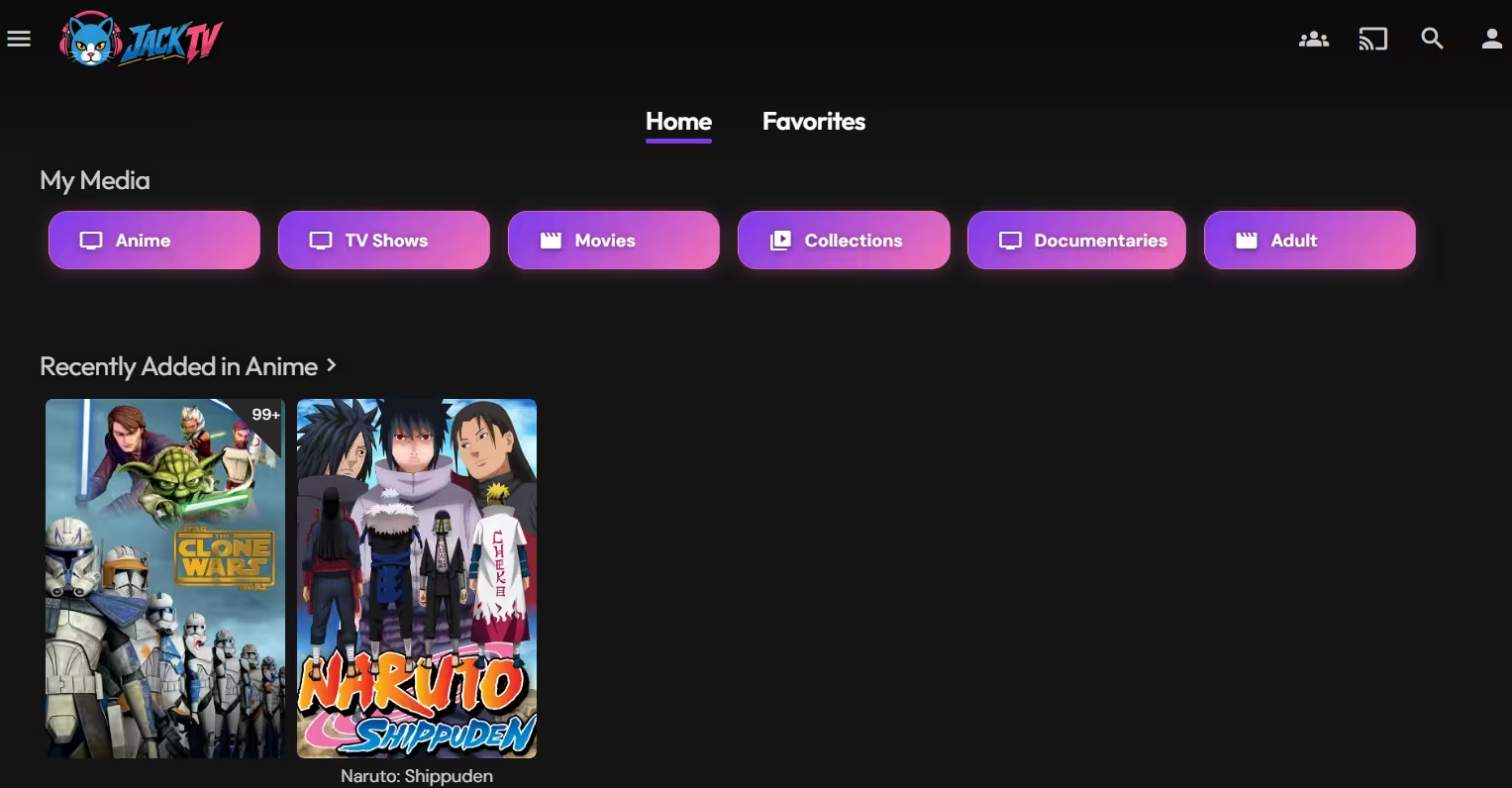
The big lesson is that direct play is a negotiation, not a setting. The client builds a device profile — codecs, container formats, subtitle handling, audio channel limits — and the server compares your exact file against it, stream by stream. “Direct play” fails not because the stick can’t play H.264, but because of a single mismatched detail: an audio track with too many channels for the current output mode, a subtitle format that needs burn-in, a bitrate cap set lower than the file’s peak. When playback silently switches to transcoding, it’s nearly always one stream in the file, not the file as a whole. Knowing that turns troubleshooting from guesswork into a checklist.
What a cheap stick can and can’t play natively
Codec support is the real difference between Fire TV models, and it decides how much of your library direct plays. From the spec sheets and my own testing on the sticks here:
| Stick | Plays natively | Watch out for |
|---|---|---|
| Fire TV Stick 4K Max | H.264, HEVC (Main 10), AV1, HDR10+, Dolby Vision | HD audio passthrough depends on your soundbar, not the stick |
| Fire TV Stick 4K (newer revisions) | H.264, HEVC (Main 10), AV1 on recent models, Dolby Vision | Older 4K revisions lack AV1 — check your generation |
| Fire TV Stick HD / Lite | H.264 and HEVC at 1080p | 4K files get transcoded down; no Dolby Vision |
The practical takeaway: a 4K Max direct plays almost any sensibly encoded library, while a Lite turns every 4K HEVC file into a server-side transcode. If your library is mostly 4K remuxes and your server is modest, the cheapest fix is sometimes the stick, not the server — though if you’re building the server side on a budget too, my budget Jellyfin server build covers where the money actually matters.
Troubleshooting the usual suspects
- Buffering on big files:first separate bitrate from bandwidth. Sticks sit behind the telly, which is the worst Wi-Fi spot in the room. If a 60 Mbps remux stutters but a 10 Mbps encode is fine, it’s Wi-Fi, not Jellyfin — try the 5 GHz band, or an Ethernet adapter. Also check the in-app bitrate limit isn’t set low, which forces a pointless transcode.
- “Everything transcodes”: check the playback info on the server dashboard while a file plays — it names the reason. Usual culprits: image subtitles burning in, an audio mismatch with passthrough off, or a bitrate cap.
- HEVC plays on one stick, not another: 10-bit HEVC (Main 10) is the profile nearly all modern encodes use; older and cheaper sticks that only manage 8-bit HEVC will kick those files to the server. The file extension tells you nothing — the profile is what matters.
- Dolby Vision looks purple/green or refuses direct play: DV comes in profiles. Profile 8 (with an HDR10 fallback layer) behaves well on DV-capable sticks; profile 7, the dual-layer format from Blu-ray remuxes, doesn’t play properly on this hardware and either falls back or transcodes. If your remuxes misbehave and your web rips don’t, this is why.
- App can’t find the server after working fine: the server’s IP probably changed. Set a DHCP reservation and re-enter the address.
That covers the journey from empty stick to a client that direct plays nearly everything. The short version one more time: install from the Appstore, sideload only from repo.jellyfin.org if you must, get audio and subtitles right, and when something transcodes, ask which stream caused it. The stick is rarely the mystery — the negotiation is.